

In today’s dynamic work environments, efficient management of meeting spaces is crucial for seamless operations. Microsoft 365 offers a powerful solution to streamline this process, enabling teams to effortlessly book meeting rooms and optimise office spaces.
As a quick note before you get going is that if you want people to be able to book a meeting room who don’t have access to your domain (e.g. a company email alfie@companyname.com), you will need to use a meeting booking software. You can learn more here in our review of the best meeting room booking software, including our own.
Watch the video guide below and follow the step-by-step instructions to set up Microsoft 365 resources for meeting room bookings in your office. Or, click the button below to connect with an expert today.
Contents
- 1 1: Create Meeting Room Resources in the Microsoft 365 admin center
- 2 2 Add a Meeting Room Booking Software for Ease of Use and Enhanced Data
- 3 4: Avoiding Scheduling Conflicts
- 4 5: Best Practices for Efficient Room Management
- 5 6: Troubleshooting and Support
- 6 So what next?
- 7 FAQ’s: About Setting Up Meeting Rooms with Microsoft 365 Resources
- 7.1 1. How do I set up meeting room booking in Microsoft 365?
- 7.2 2. What are Microsoft 365 room resources?
- 7.3 3. Can external users book meeting rooms in Microsoft 365?
- 7.4 4. How does Microsoft 365 prevent double bookings for meeting rooms?
- 7.5 5. When should you use meeting room booking software alongside Microsoft 365?
1: Create Meeting Room Resources in the Microsoft 365 admin center
1.1 Prepare a List of Meeting Rooms
- Start by creating a list of all bookable meeting rooms in your company, along with their details (e.g., name, location, and capacity).
- Ensure you have an Admin account for your Microsoft 365 business subscription (personal accounts cannot access these features).
1.2 Login to the Admin Center
- Open the Microsoft 365 Admin Center.
- Sign in using your Administrator credentials.
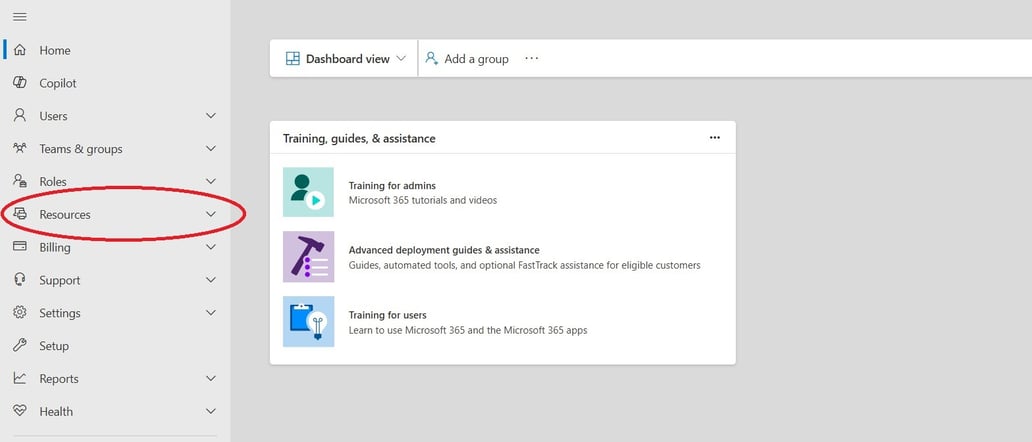
- From the Admin Center’s left-hand navigation menu, go to Resources.
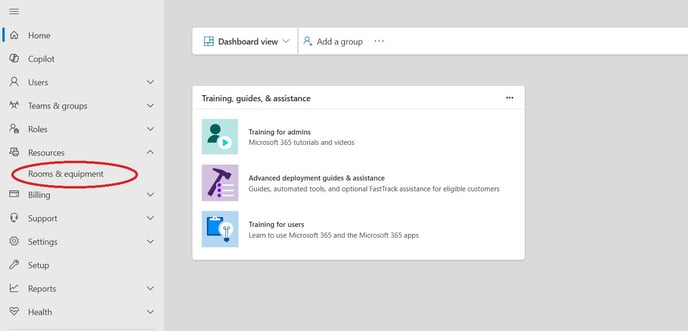
- Select Rooms & Equipment from the submenu.
1.4 Add a Meeting Room Resource
- On the Rooms & Equipment page, click the + Add resource button.
- Fill out the required details in the pop-up window, including:
-
- Resource Type: Specify the resource type.
- Resource name: A clear and descriptive name for the room (e.g., “Conference Room A”).
- Resource email address: Create an email address for the resource, which will be used for scheduling.
- Capacity: Indicate the room’s seating capacity.
- Location: Specify the building and floor, if applicable.

1.5 Save the Resource
- After entering the details, click Save to create the resource.
1.6 Repeat for Additional Rooms
- Repeat steps 1.4 and 1.5 for each bookable space in your organization.
- Ensure all resources are accurately named and categorized to make scheduling easier for users.
2 Add a Meeting Room Booking Software for Ease of Use and Enhanced Data

- Regular Review of Bookings: Periodically review and optimise room bookings to accommodate changing office dynamics and requirements.
- Encourage Communication: Create a communication channel or guideline for employees to release or modify room bookings if they’re no longer needed.
4: Avoiding Scheduling Conflicts
- Real-Time Updates: Microsoft 365 / Outlook Calendars automatically update in real-time, preventing double bookings or conflicts.
- Notifications and Reminders: Set up notifications to remind attendees of scheduled meetings, reducing the chance of no-shows or misunderstandings.
5: Best Practices for Efficient Room Management
- Regular Review of Bookings: Periodically review and optimise room bookings to accommodate changing office dynamics and requirements.
- Encourage Communication: Create a communication channel or guideline for employees to release or modify room bookings if they’re no longer needed.
6: Troubleshooting and Support
- Providing Support: Establish a support system or point of contact for any booking issues or technical difficulties. meeting room booking software providers can often do this for you as part of the package.
- Training and Guidance: Offer training sessions or documentation to familiarise employees with the room booking process and any recent updates. Again you will find meeting room booking software providers can often do this for you as part of the package.
By implementing these steps, you can effectively manage office spaces, reduce scheduling conflicts, and ensure efficient use of meeting rooms. Microsoft’s Calendar resource booking system simplifies the process, enhancing productivity and promoting a collaborative work environment.
Utilising technology to streamline office operations is a testament to the adaptability and efficiency of modern workplaces. With a well-organised system in place, your team can focus on their tasks without worrying about the hassle of room bookings. Cheers to a more organised and productive workspace having set up Meeting Rooms with Microsoft Calendar Resources!
So what next?
If you know you will need a meeting room booking solution that provides a user interface, tablets to book from in the building, or external users to book then you will need a meeting room booking software on top of your calendar resources.
To find out how Othership can help, use the links below to speak to an expert or even try our Meeting Room Booking solution for free.
FAQ’s: About Setting Up Meeting Rooms with Microsoft 365 Resources
1. How do I set up meeting room booking in Microsoft 365?
To set up meeting room booking in Microsoft 365, you need to create room resources in the Microsoft 365 Admin Center under Rooms & Equipment. Each room is assigned a resource email, capacity, and location so it can be booked through Outlook calendars. Once configured, employees can reserve rooms directly from their Microsoft 365 calendar interface.
2. What are Microsoft 365 room resources?
Microsoft 365 room resources are dedicated calendar accounts that represent physical meeting rooms or equipment within your organisation. These resources allow users to book meeting spaces through Outlook while preventing double bookings. They function as part of Microsoft’s built-in calendar resource booking system.
3. Can external users book meeting rooms in Microsoft 365?
By default, Microsoft 365 meeting room booking is designed for internal users within your domain. If you need external guests or non-domain users to reserve rooms, you will typically require dedicated meeting room booking software that integrates with Microsoft 365. This adds a user-friendly interface, visitor access controls, and advanced booking features.
4. How does Microsoft 365 prevent double bookings for meeting rooms?
Microsoft 365 uses real-time calendar synchronization through Outlook room calendars to prevent scheduling conflicts. When a room resource is booked, the system automatically updates availability and declines overlapping requests. This real-time functionality ensures efficient meeting room management and reduces booking errors.
5. When should you use meeting room booking software alongside Microsoft 365?
While Microsoft 365 provides basic room scheduling, businesses often adopt meeting room booking software for advanced features like analytics, tablet displays outside meeting rooms, external booking access, and usage reporting. Solutions like Othership integrate with Microsoft 365 room resources to enhance visibility, improve space utilisation, and optimise office operations.


You must be logged in to post a comment.